
Ultimate Audio Increaser Chrome: Amplify Sound Like Never Before
Table of Contents
Hey, Chrome users! Ever turned your volume to max, only to barely hear a YouTube tutorial or Spotify track? It’s like trying to listen through a wall. The Volume Booster extension, available at Volume Booster, is your go-to audio increaser chrome tool, cranking up sound by up to 600%. With volume boost up to 600%, bass enhancer, and tab-specific volume control, this chrome audio amplifier transforms your listening experience on Chrome. Whether you’re streaming movies, jamming to music, or joining online calls, let’s explore how Volume Booster delivers powerful audio, guide you through setup, and share clever tricks to make every sound pop. Ready to crank it up?
When Chrome Audio Falls Flat
You’re deep into a Netflix binge, but the dialogue is so quiet you’re lip-reading. Or maybe you’re on a Zoom call, struggling to hear a soft-spoken colleague. Chrome’s built-in audio controls often don’t cut it, leaving you tweaking system settings or straining your speakers. Volume Booster, a stellar sound booster extension, solves this with audio increaser chrome capabilities, amplifying sound across your browser tabs and enhancing quality for a seamless experience.
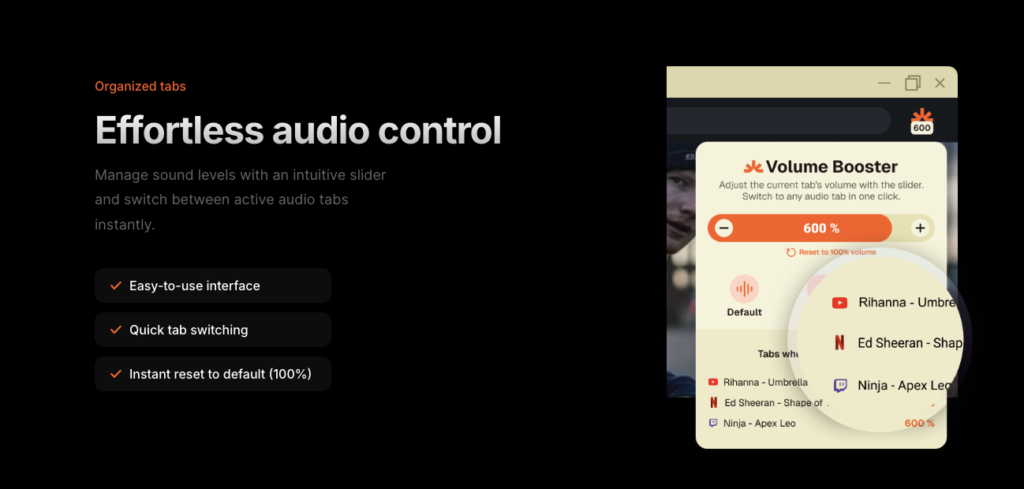
What Powers Volume Booster
Available at Volume Booster, Volume Booster is a top-tier audio enhancer chrome tool designed for Chrome users who demand better sound.
Massive 600% Volume Boost
Amplify audio up to 600%, ensuring every sound, from podcasts to webinars, is loud and clear.
Bass Enhancer for Rich Tones
Boost low frequencies with the bass enhancer, ideal for music streaming or movie watching.
Tab-Specific Volume Control
Adjust volume for individual tabs with tab volume control, perfect for multitasking without audio overlap.
Intuitive Volume Slider
Tweak sound levels in real-time with a user-friendly slider, no complex settings needed.
Seamless Chrome Integration
Works flawlessly on Chrome for Windows, Mac, or Linux, enhancing audio across platforms.
Instant Audio Adjustments
Change volume on the fly without reloading pages, keeping your listening smooth.
Choosing the Right Audio Increaser Chrome Tool
With plenty of volume maximizer extensions out there, here’s how to pick the best one for Chrome.
Step 1: Prioritize Audio Features
Look for volume boost up to 600%, bass enhancer, and tab volume control for a versatile audio experience.
Step 2: Ensure Chrome Compatibility
Volume Booster is optimized for Chrome, integrating smoothly via the Chrome Web Store.
Step 3: Check User Feedback
Browse reviews on Volume Booster or the Chrome Web Store to confirm performance for audio enhancer chrome tasks.
Step 4: Go for Free Options
Volume Booster offers a robust free version, ideal for budget-conscious users.
Step 5: Verify Security
Choose trusted extensions like Volume Booster with minimal permissions to keep your data safe.
How to Set Up Volume Booster for Epic Sound
Ready to amplify your Chrome audio? Here’s how to get Volume Booster as your audio increaser chrome tool.
Step 1: Install the Extension
- Open Chrome.
- Visit Volume Booster or the Chrome Web Store.
- Click “Add to Chrome” and pin the extension to your toolbar.
Step 2: Open Your Audio Source
Load a YouTube video, Spotify playlist, Zoom call, or any tab with audio you want to boost.
Step 3: Crank Up the Volume
- Click the Volume Booster icon.
- Slide the volume up to 600% for chrome audio boost.
- Turn on the bass enhancer for deeper sound.
- Use tab volume control to adjust specific tabs if multitasking.
Step 4: Fine-Tune and Test
Play your audio and tweak the slider to balance volume and bass for optimal clarity.
Step 5: Enjoy Louder Audio
Experience amplified sound across your tabs, from music to meetings, with no hassle.
Audio Adventures with Volume Booster
Picture this: you’re watching a low-budget indie film on YouTube with barely audible dialogue. Volume Booster ramps up the sound to 500%, making every word clear, while the bass enhancer gives the soundtrack a cinematic kick. Or maybe you’re juggling a podcast in one tab and a Google Meet in another — tab volume control lets you boost the podcast without overpowering your meeting. For gamers, amplify subtle in-game sounds like enemy footsteps in Fortnite with louder audio plugin for a competitive edge.
Audio Hacks for Chrome Users
Maximize your audio increaser chrome tool with these pro tips.
- Start Low, Go Slow: Begin with a 200% boost and adjust to avoid distortion at higher levels.
- Balance Bass: Use the bass enhancer for music or movies, but reduce it for clear dialogue in calls or tutorials.
- Tab-by-Tab Control: Leverage tab volume control to prioritize audio, like boosting a lecture while muting background music.
- Test Across Media: Experiment with Volume Booster on YouTube, Netflix, and Spotify to find ideal settings for each.
- Protect Your Gear: Avoid prolonged 600% boosts to prevent strain on speakers or earphones, checking for crackling.
Integrating Volume Booster into Your Chrome Routine
Volume Booster fits perfectly into your Chrome workflow, enhancing audio for streaming, work, or gaming. Pair it with platforms like Netflix, Zoom, or SoundCloud to elevate every listening moment. Whether you’re a student catching online classes or a professional in virtual meetings, this chrome audio amplifier ensures you hear every detail without tweaking system settings.
Comparing Audio Increaser Chrome Extensions
Here’s how Volume Booster stacks up against other sound booster extensions.
| Feature | Volume Booster | Audio Boost | Sound Enhancer |
|---|---|---|---|
| Volume Boost Up to 600% | Yes | Yes | Yes |
| Bass Enhancer | Yes | Yes | Limited |
| Tab-Specific Volume Control | Yes | Limited | Yes |
| Intuitive Slider Interface | Yes | Yes | Yes |
| Browser Compatibility | Chrome, Edge, Opera, Firefox | Chrome | Chrome |
| Free Version | Yes | Yes | Yes |
Note: Check Volume Booster or the Chrome Web Store for details.
Fixing Audio Glitches with Volume Booster
Even top louder audio plugin extensions can face issues. Here’s how to troubleshoot.
Issue: Sound Distorts at High Levels
Solution: Reduce the slider to 300–400% to minimize crackling, especially with budget speakers.
Issue: Bass Overwhelms Vocals
Solution: Lower the bass enhancer for clearer dialogue in videos or calls.
Issue: Tab Volume Not Responding
Solution: Ensure tab volume control is active and test on a single tab.
Issue: Browser Slows Down
Solution: Limit active tabs or lower the volume boost to reduce browser strain.
Creative Uses for Audio Increaser Chrome
Get inventive with your audio increaser chrome tool!
- Cinematic Streaming: Boost Netflix audio with chrome audio boost for a theater-like vibe.
- Gaming Edge: Amplify in-game sounds with tab volume control to hear cues in games like Apex Legends.
- Music Immersion: Enhance Spotify tracks with bass enhancer for a concert-like experience.
- Clear Calls: Increase Zoom audio with volume maximizer for better clarity in meetings.
For more audio tips, visit Volume Booster.
Why Volume Booster Is Essential for Chrome Users
From amplifying quiet streams to enriching music playback, Volume Booster delivers unmatched audio control. Its volume boost up to 600%, bass enhancer, and tab-specific volume control make it perfect for Chrome users who want loud, high-quality sound without the hassle. Say farewell to faint audio and hello to a vibrant listening experience.
Conclusion
For Chrome users, Volume Booster is the ultimate audio increaser chrome extension to elevate your sound experience. With volume boost up to 600%, bass enhancer, and tab-specific volume control, it’s ideal for making videos, music, or calls louder and clearer on Chrome. Install it from Volume Booster or the Chrome Web Store to transform your audio today. Crank up the sound and enjoy every moment!
FAQs
1. How does Volume Booster improve Chrome audio?
It amplifies sound up to 600% with audio increaser chrome, enhances bass, and offers tab volume control for tailored audio.
2. Is Volume Booster free?
Yes, it offers a robust free version via Volume Booster or the Chrome Web Store.
3. Can I adjust audio for specific Chrome tabs?
Yes, tab volume control lets you tweak volume for individual tabs, like YouTube or Zoom.
4. Will high volume damage my speakers?
Prolonged 600% boosts may cause crackling; adjust gradually to protect speakers or headphones.
5. How do I avoid audio distortion with Volume Booster?
Lower the slider to 200–400% and fine-tune the bass enhancer for clear, distortion-free sound.
Amplify Your Chrome Audio with Ultimate Volume Booster
Ready to hear every detail loud and clear? Install Volume Booster, the ultimate audio increaser chrome extension, from Volume Booster or the Chrome Web Store to unlock volume boost up to 600%, bass enhancer, and tab-specific volume control. Share your top audio tips in the comments below, and enjoy a louder, richer Chrome experience today!
